
Screen-free Evening Time Rebuilds Family Bonds
Last updated on March 2nd, 2018 at 02:57 pm
 It hit me about two months ago that evenings in front of the TV, video games, and computer at my house had finally gotten out of control. So I came up with an idea: The kids would have to turn off all screens at 9 p.m. and keep them off ‘til bedtime. (To stave off a full-blown revolt, I’d get TiVo so they could catch up with whatever they might miss.)
Oddly, it was my husband who argued the hardest against this little campaign of mine. “What do you expect them to do all night?” Exactly my point. Getting the boys off the screen actually was a cinch (I’m still bigger than they are). But I went back to my room to find Paul up to his eyeballs in an NCIS episode. He huffily agreed to shut it off. Five minutes later, he was on his Blackberry answering emails and I was happily looking up recipes on my laptop. The boys, however, were deep into a fistfight and utterly miserable. What were we thinking? If we wouldn’t walk the walk, why wouldn’t they?
So with some serious sweet talk and bargaining, I got Paul offline and I logged off myself. And, wouldn’t you know it, something really cool happened. Four hapless people with no screen to turn on gravitated toward each other. We all sat on our king bed and joked around. Paul even pulled out his guitar and practiced with the boys. We’ve been screen free after 9 p.m. for two months now, and we’ve gotten into a groove. Sometimes I’ll read out loud with my 10-year-old (who knew he still liked it?) while Paul and my older son horse around with the dog. Way better than plugging into machines, we’ve plugged into each other. Turns out, it’s easier done than said.
How to Delete Your Child’s Instagram Account and Why It Matters
Last updated on March 3rd, 2018 at 10:20 am
 There are many reasons you might want to delete your child’s Instagram account. For starters, Instagram’s Terms of Service requires that a member be at least 13 years of age to join, so if your child (12 and under) has an account, they’ve obviously lied about their age. But beyond that, your child could be dealing with other problems on Instagram, like cyberbullying, sexting, child predation, access to porn or other concerning content that you can’t even imagine. You can read more about what kids, teens, parents and teachers have experienced on Instagram by reading the comments section of this article. These are all very legitimate reasons to delete your child’s account until you feel they are mature enough to understand the consequences of their online actions and to follow your family’s technology rules.
Unless you have direct access to their account via the web version of Instagram or through services like Statigram (both of which require your child’s username and password), it’s nearly impossible to know what your child is posting, who they’re engaging with, and more importantly, who’s engaging with them. That’s why it is absolutely critical to keep an open dialogue with your child about these issues, so that, if and when it’s necessary, they’ll know exactly why you’re making the decision to delete their account and what needs to happen in order for them to get it back. They need to know that this is not about you being mean, overprotective, or controlling; it’s about being their parent and making a decision that’s best for them at this time in their life. Keep in mind, if you choose to delete their Instagram account, everything that belongs to that account will be permanently deleted and that username can no longer be used.
1. Log into your child’s Instagram account by going to www.instagram.com

2. Once logged in, click the username in the top right. From the options provided, click Edit Profile.

3. On the bottom right of the next page, you’ll see a link that says “I’d like to delete my account.”

4. On the next page, just provide a reason why you’re deleting the account (if you don’t want to get into it you can just choose “other reason”). Enter your child’s password one last time, then click the red “Permanently deactivate my account” button.

Preventative Measures
Deleting an account doesn’t guarantee your child won’t use Instagram again. They could easily re-download the app or skip the app entirely and just go with the web version of Instagram. Of course, no two children are alike when it comes to following the rules, so this just once again drives home the importance of talking to your child about the issues that caused you to delete their account in the first place.
Now, though you could block the website on your browser at home, there isn’t much you can do to prevent your child from creating an account on Instagram’s website, assuming they go out of their way to do so. And as far as parental controls go on Android phones, they don’t offer much, if anything at all. If your child uses an iPhone or iPod Touch, however, it’s very easy to set a restriction that prevents them from downloading the Instagram app. And let’s be honest, the true draw to Instagram is its mobile app.

On your child’s iDevice, tap the Settings icon.

On the Settings screen, tap General.

Then, tap Restrictions.

You’ll want to tap Enable Restrictions, which will require you to create a passcode. This step is key to preventing your child from re-downloading Instagram.

Scroll down a bit and tap Apps on this screen.

And this is where you want to be. Though Instagram only allows users 13 and older, Apple has categorized their app under 12+, so what you need to do here is tap 9+. Doing this not only prevents your child from downloading Instagram, it prevents Instagram from even showing up in the App Store.
You can learn more about iPhone, iPod Touch, iPad and iTunes safety at Yoursphere for Parents.
Kik – What It Is and What Parents Need to Know
Last updated on March 2nd, 2018 at 04:33 pm
 Sexting has parents concerned – and rightfully so. A byproduct of this concern is a heightened sense of awareness that we’re seeing from parents. I get emails every day from parents asking me how to prevent their child from downloading certain apps, and what’s the best way to monitor what their child is doing on their smartphone. Sexting continues to be an underlying concern in all of these conversations — probably because kids and teens use their smartphones to text more than anything else, and according to kids in the UK, sexting is just the new way to flirt. But what a lot of parents aren’t aware of is the fact that their child doesn’t need to be on a texting plan in order to text. There are plenty of third-party apps that offer texting services for free, and one that has come up in several conversations that I’ve had with parents is Kik.
What Is Kik?
Kik is an instant messenger app—think AIM chat or texting. The app is available for free on all mobile platforms, and is well-received by the millions of people, mainly because it can replace a texting plan through their cell provider. Through their data plan or Wi-Fi connection, Kik users can send and receive text messages and photos to an individual on their Kik contact list, or they can start a group chat with several Kik contacts. Instead of using phone numbers, each Kik member has a username. This username can be accompanied by a profile photo, if the user wishes, but ultimately this is Kik’s way of creating a sense of privacy among their users.

Inviting People to Kik

Kik users can use the Invite a Friend option to invite new people to connect with them on Kik. This can be done in several ways, but the method that poses the greatest risk to your child’s privacy and safety is the ability to invite people via social networks. With the click of a button, your child can reach out to the public communities on Facebook, Twitter, MySpace and Tumblr (among many others) with the message “Kik me”. No surprise here, “Kik me” is Kik’s way of starting a new instant message conversation between the sender and the recipient, whoever they may be.
Kik users can also manually search for someone’s Kik username and start a conversation that way, or they can dig into their phone’s contact list to see who’s already on Kik. Of course, the latter is a much safer approach to connecting with people on Kik since these people are already known to the user in some form or another.
Privacy and Parental Controls
Though Kik makes it easy to block other Kik users and ignore message notifications from new people, they offer zero parental controls, leaving it up to the child or teen to set these privacy settings on their own.
Another Kik safety concern that you should be aware of, and this is credited to Michael Sheehan’s blog titled “Parents Beware: Instagram & Kik Messenger Are a Dangerous Combination & What Social Dangers to Check For”, is the fact that kids and teens are sharing their Kik username on public social networks, like Instagram, through comments and profiles. As you can imagine, doing this opens the door to unwanted solicitations from Internet trolls, “pervs” and cyberbullies. In Michael’s case, his daughter’s friend received a request to chat on Kik via Instagram and the next thing she knew she was being asked to send naked photos of herself.
——————————-
The reason I wrote this piece wasn’t to bash Kik or to tell you that it’s an unsafe app for your child or teen; whether you feel it’s safe enough is entirely up to you and the maturity level of your child. But just like with any app or website that isn’t specifically created for children (and thus COPPA compliant), the safety and privacy risks tend to be more prevalent. With that being said, if your child is 12 or younger, they shouldn’t be using Kik at all. If your 13 or older teen prefers to use Kik instead of texting, and you’re saving some money in the process, you don’t need to delete the app from their phone, just have a very serious conversation with them about the safety risks involved with sharing their Kik username in public social networks and forums. While you’re at it, take five minutes to make sure they’re using the privacy settings.
The Internet will never be a totally “safe place” for our children, so we as parents have to remain vigilant and educated in order to take what we learn and pass it on to our kids.
Protect Your Family’s Privacy & Financial Information Online
Last updated on March 2nd, 2018 at 04:50 pm
Much has been said about people being tracked while they browse the web, which is something that ad agencies and marketing firms do in order to “personalize a user’s experience”.
How do you know if you’re being tracked? Well, it happens in the background all the time.
 Say you’re browsing Amazon or Google for a home security system, or you’re writing an email to your sister, asking her for recommendations on different home security providers, and 30 seconds later you see an ADT ad on a website that has nothing to do with home security systems – that’s the end result of what some people consider an invasion of privacy on the Internet, and just one example of it.
Like they say, this tracking technology can make your web browsing experience much more convenient, but not everyone subscribes to that idea. If you’re someone who doesn’t, there are several ways to prevent ad agencies and marketing firms from accessing your or your family’s information or browsing history.
Use Tor as Your Web Browser
Tor Browser is an open source web browser that protects your information and web activity from companies and individuals that track – or for more malicious purposes, such as gaining access to financial information that is stored on your computer. Tor works by bouncing your Internet connection around a secure, volunteer-run worldwide network, so if someone wanted to track you they would have to track your computer through all the connections around the world instead of just the single connection from your home or office. The good thing about Tor is it works with all websites and it’s just as fast as your everyday web browsers, such as Chrome and Firefox. The only downside is that Tor takes a little longer to start up, due to the fact that it needs to establish a connection with the worldwide network.
To download Tor Browser for your computer go to https://www.torproject.org/ and click the “Download Tor” button. Tor is free and available for Windows, Mac, and Linux based operating systems.
Disable Tracking Cookies on Your Computer
Simply put, cookies are small, encrypted Internet files that live on your co
mputer. They are meant to make your browsing experience faster by remembering passwords, usernames, emails and other stored information. These cookies are called “first-party cookies”.
The ones you want to delete regularly are called “third-party cookies”. These cookies are designed to track and analyze your web browsing habits and relay that information back to ad networks or marketing firms.
By disabling third-party cookies you can make browsing the Internet a more private experience for you and your children. And if you’re like me, you’ll feel better that marketing firms aren’t collecting data on your child and storing it on a server somewhere.
You can learn how to disable third-party cookies on any browser by following this step-by-step guide.
Clean Up Your Social Media Accounts
Social media accounts are a gold mine for marketing firms who want to find personal information about individuals in order to better target them with ads. Facebook is especially vulnerable since all your personal information is organized and out in the open on your profile. And despite the fact that children under 13 are not legally “allowed” to use Facebook, a large percentage of them find a way to access it one way or another, which means your child’s data is at risk as well.

“The guts of the issue, especially as it relates to your child, really comes down to what your child is sharing online with others. (…see Three Good Reasons Why Your child Shouldn’t Be on Facebook). Are they casually giving out their home address? Are they posting the name of their school on Facebook? Are they announcing to everyone that they recently changed their cell phone number? Because Facebook is a social network for adults where open networking is encouraged, questions like these are integrated right into the sign up process. The important thing to realize here is that children will willingly give out this information, though it’s not required of them, just because they were asked. As you can imagine, this is where a child’s privacy and safety become jeopardized.“
Below is a step-by-step mini guide that outlines how to delete any personal information from your profile that could let scammers know where you live. Also, remember to avoid posting photos of your house or the general area where you live – this seems like a no-brainer but sometimes we get caught up in the moment and overlook the amount of personal detail in a photo.
- First, log into your Facebook account. On your profile, click the “about” link below your profile picture.
- Scroll down until you see the “living” tab and click “edit”. Delete your current and past cities.

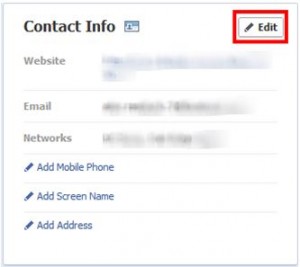
- Next, scroll down to “Contact Info” and click the “edit” button. If you’ve accidentally added your phone number and/or address, delete it.


With the fastest growing segment of identity theft being among kids and teens, it’s important that you help your children take these precautionary safety measures if they haven’t already. Aside from the unhealthy, adult-intended content on the social network (inappropriate photos, adult groups, language, the list goes on), Facebook’s registration process encourages users to divulge far too much personal and geographical information.
I founded Yoursphere.com because I knew it was possible to offer children a fun and positive social networking experience without tricking them into giving away any personal information. I wanted to create a social network where privacy is the standard and education about important issues like online safety and cyberbullying are integrated right into the social networking experience. Our members have embraced this philosophy, taking the education into their own hands and teaching other members what it means to be safe online, why they should think before they post, and the difference they could make by choosing to be kind to others online.
If you would like to learn more about how we teach safety and privacy in Yoursphere, and how to easily teach it to your own children based on their age, you can follow this guide.
Finally, Delete Your Financial Information from Online Stores
E-commerce sites like Amazon give people the option of storing credit card and billing information on Amazon’s servers in order to make purchasing easier and faster. Though I understand the reasons for taking advantage of this service, I started realizing the risks of doing so shortly after the PlayStation Network was hacked.
The PlayStation Network incident put millions of PlayStation user’s personal information into the hands of criminals, and there was nothing anyone could do about it except check with their banks and change the passwords on their accounts. Seeing how easily a large international, multi-million dollar company like Sony could lose all of that information made me realize that other online vendors are no exception. As a safety precaution, I deleted all of my financial information from Amazon. Sure, it makes the process of purchasing products from them a little slower, but in the end having my financial information secure is worth the inconvenience.
How to Set Limits for Your Teched-out Tween
Last updated on March 2nd, 2018 at 04:53 pm
 By the time they hit middle school, most kids either have cell phones and Facebook accounts – or are begging to get them (“Everyone else has an iPhone!”) – leaving parents to figure out how much digital time is too much. Setting boundaries early can help keep things in balance, at least for a while.
Once kids hit their teens, social media takes a huge bite out of their free time. The average 12- to 17-year-old blasts out 60 texts every day, according to a 2012 study by the Pew Research Center, and nearly one-fourth of teens plug into a social media site at least 10 times per day, according to a 2011 report in the journal Pediatrics.
Here, experts explain how to set limits on your teched-out tweens … while you still can.
Talk before you make rules. Kids are more rational than we give them credit for. “If you ask kids whether they want to spend five hours a day in front of a screen, most say it’s unreasonable,” says Dr. Dina Borzekowski, professor of health, behavior and society at Johns Hopkins Center for Global Health. Then set rules that they agree to keep.
Choose a hard number. It may be difficult to always enforce, but come up with a set time formula for kids to stick to, suggests Dr. Larry Rosen, psychology professor at California State University, Dominguez Hills, and author of Me, MySpace and I: Parenting the Net Generation. Start with a 1-5 ratio: For every minute of gadget time, younger kids should spend five minutes of free time doing something else. As tweens become teens, adds Rosen, expect that balance to shift, perhaps tipping to 5-1 the other way.
Pick the right plan. Pick a phone package that gives your tween enough usage time but not too much. “Otherwise, you’re going to get a $500 phone bill for text messages,” says Rosen. Tell her how much time she has to use monthly, and explain that she will have to pay for overtime using her own money.
Create a no-phone zone. If the phone’s within reach, it’s hard to ignore — for kids and parents. Choose times and places at which phones aren’t allowed: the dinner table, the family room when everyone is together, and the kids’ bedrooms at night. That includes your phone, says Borzekowski: “If parents constantly check text messages during supper, what’s going to prevent a tween from doing the same?”
Establish penalties. Consequences are what make rules stick. If your tween breaks one of the rules (e.g., bringing his phone to bed), start with a short-term punishment, such as banning video games for the rest of the day, suggests Rosen. If they continue to disobey, double the punishment to two, and then four, days. “Pretty soon, they get it,” says Rosen. “I’ve rarely seen kids get past four days.”
The limits you set for your middle-schoolers may not last, but they will help keep tech time in check for a while … and set an example for spending more face time and less screen time in the future.
Pediatric Safety Announcement: Welcome Mary Kay Hoal!
Last updated on March 2nd, 2018 at 04:55 pm

Please join us in welcoming our new Child and Family Online Safety Expert Mary Kay Hoal to the PedSafe Expert Team!

